This page was machine-translated from Portuguese and may contain mistakes. Read the original
In my last article, I discussed some of the advantages of Playwright—an automated testing tool/framework created by Microsoft.
In this article, I’ll demonstrate in practice how test execution times compare to Cypress.
The main reason for choosing these tools is that they offer state-of-the-art test automation capabilities for the reliable, fast, and continuous execution of test suites:
- TypeScript support
- A variety of locators for identifying elements on the screen (including adherence to W3C accessibility guidelines)
- Test parallelism
- API support (with access to endpoints and options to verify returned responses)
- Support for multiple browsers, including integration with tools such as BrowserStack and SauceLabs
- Flexible architecture
IMPORTANT: This article will not prioritize test automation best practices, as the goal is to demonstrate the advantages of Playwright in isolated scenarios.
Getting Started
For installation, I followed the step-by-step instructions provided on each tool’s website, and I’ve made the sample repositories available in case you’d like to run them on your own machine.
Playwright v1.31.2
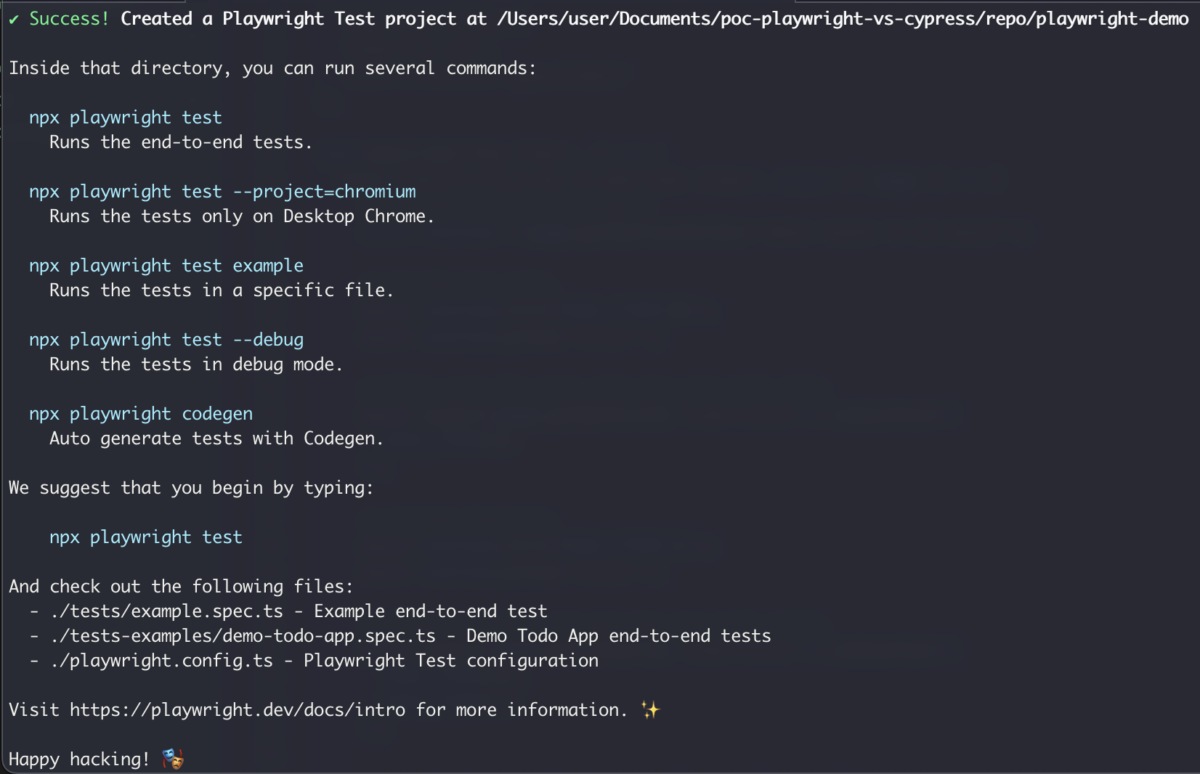
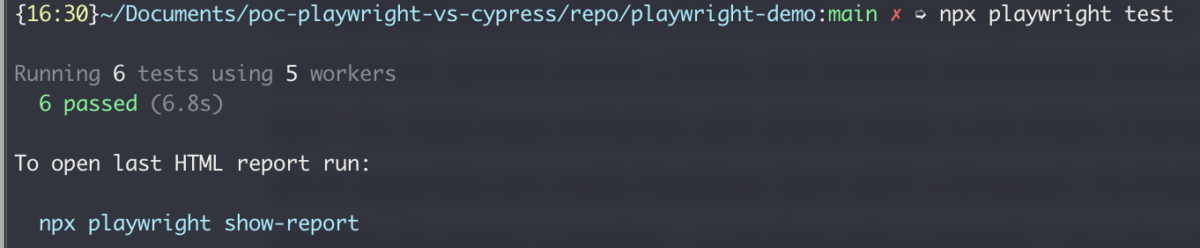
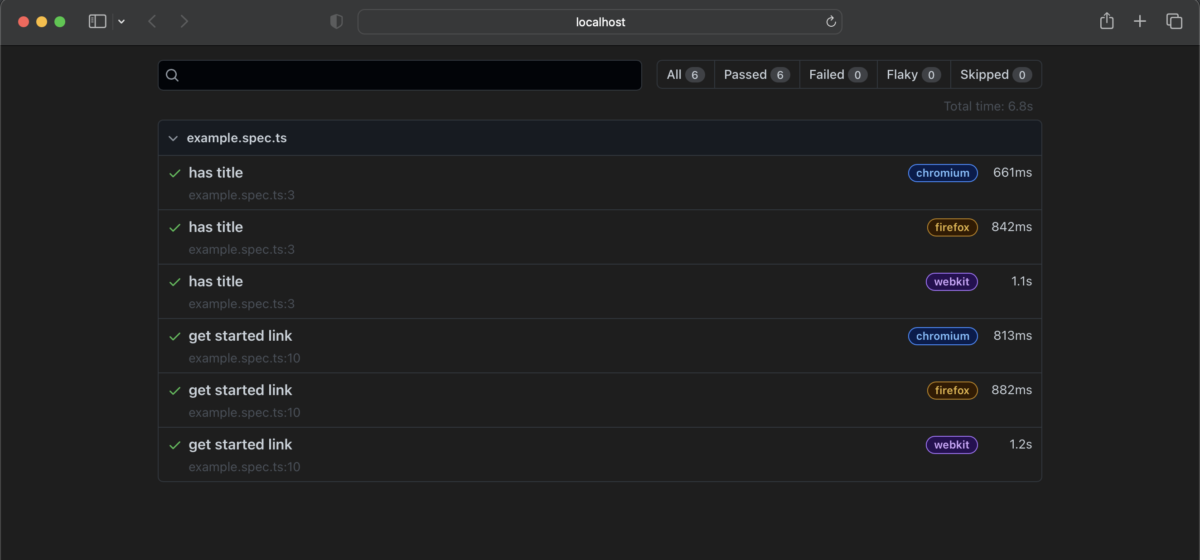
It’s worth noting that as soon as the installation is complete, Playwright immediately guides you through the next steps, so you don’t need to go back to the website to figure out what to do. At this point, it has already created the configuration file to run tests across all browsers and provides a sample test file. In other words, if you just want to modify the test, in a matter of minutes you’ll have everything set up—all you need to do is run `npx playwright test`. I ran this command without making any changes, and it executed 2 tests across 3 browsers (6 tests total) in 6.8 seconds in headless mode (without opening a browser). At the end, it also provided the complete test report—accessible via the command `npx playwright test`, which it tells you itself. It’s all very simple and practical, just as I described. I could end this article right here; in about 3 minutes, I was able to install it, run the tests, and access the reports. But let’s take a closer look at how this process compares to Cypress. :]
Below is an image showing the post-installation instructions for Playwright:
Below is an image showing the example test running with Playwright:
Below is an image showing the Playwright test execution report
Test Execution Time
Execution
Once installed, Playwright automatically creates a `tests-examples` folder and a `demo-todo-app.specs.ts` file with 24 implemented tests. We’ll use this file as an example.
-
In the `playwright.config.ts` file, I changed line 13:
- from: `
testDir: './tests',` - to `
testDir: './tests-examples',`
- from: `
-
In the terminal, I ran:
npx playwright test
Result
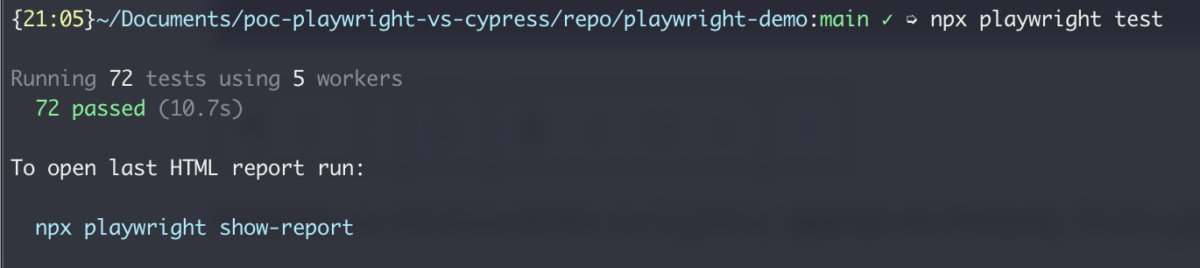
72 tests (24 tests across 3 browsers) ran in 10.7 seconds using 5 workers.
Below are the test results using Playwright:
Running the same tests in Cypress, using only Chrome, took 28 seconds. In addition to the time needed to:
- Figuring out how to set up and run tests on the website: about 5 minutes
- Migrating all tests from Playwright to Cypress using ChatGPT: about 2 hours (I had to split the file and make some manual adjustments to the generated code)
- Figuring out how to run the tests via the command line
npx cypress run --browser chrome: about 2 minutes - Figuring out how to run tests in parallel: about 2 minutes (According to the documentation, Cypress does not run tests in a single file in parallel; it only supports parallelization across files. To run tests in parallel, I would need to split the file into multiple files)
- Determine how to add a test report: about 10 minutes (I couldn’t find this in the Cypress documentation, but I found this website that explained it very clearly)
- Figuring out how to run tests in more than one browser at the same time: about 10 minutes (According to the documentation, Cypress does not run tests in more than one browser at the same time. I had to create a script in `package.json` grouping two commands—one for each browser—and it ran the tests sequentially, taking twice as long. To run tests in multiple browsers in parallel, it would apparently be necessary to use tools like BrowserStack, SauceLabs, etc.)
Explanation
Playwright runs tests in parallel by default (Parallelism and sharding). It uses a concept called “workers.” When we run the tests, it creates multiple workers (depending on the need and the machine’s processor) and distributes the tests across different workers.
In the `playwright.config.ts` configuration file, you’ll see `fullyParallel: true`, which means it will use full parallelism—that is, it will run tests in parallel within the same file. You can also change the configuration to a single-file mode, if necessary, by adding `test.describe.configure({ mode: 'serial' });` to your test file. This way, it will run this file in isolation when the other tests are not running.
Additionally, you’ll see `workers: process.env.CI ? 1 : undefined` in this same file. This is a ternary operator used to determine the number of workers. In this configuration, it will use 1 worker if the variable `process.env = CI` and `undefined` when the variable is not `CI`—that is, for all other environments, including the local environment (unless you set your local variable to `CI`). When the number of workers is `undefined`, the Playwright test runner handles this. You can specify a fixed number of workers (by changing “undefined” to a number) or pass the number via the command line when running the test: `npx playwright test --workers 10`.
I ran the same tests with 10 workers, and they completed in 11 seconds. With 100 workers (it capped at 72 since that’s the total number of tests), it took 19 seconds. We concluded that there is no significant advantage to manually increasing the number of workers. Playwright itself is already optimized in its default configuration.
Sharding—which involves running tests on separate machines (such as Docker instances)—is particularly useful for pipelines. You can add machines to your pipeline configuration file (GitHub, GitLab, etc.), for example using the `--shard=$CI_NODE_INDEX/$CI_NODE_TOTAL` parameter (I’ll discuss this further in a future article), and the tests will be distributed across these machines. In this case, it’s important to experiment a bit to identify the optimal number of machines (Playwright doesn’t control this). Since there’s an initial setup time required to run the tests, adding more machines won’t always make the tests run faster.
Conclusion
As I mentioned in the previous article and as we’ve seen in this one, Playwright already provides everything you need, simplifying the work and saving time.
In about 5 minutes, I was able to install it, run a few tests, review the report, make a change to the configuration file to run tests from another folder, run those other tests on 3 different browsers, and review the report. With Cypress, on the other hand, it took about 20 minutes. Not to mention the actual test execution time, which was 10.7 seconds with Playwright versus 84 seconds with Cypress (considering that I had to run the same tests three times since Cypress doesn’t parallelize tests by browser).
This time is crucial when it comes to Continuous Delivery. If you aim to run a complete suite with thousands of tests before a production release, it’s unacceptable for that suite to take more than 5 minutes in most scenarios. Developers and managers won’t wait that long when an emergency release is needed, which impacts the reliability of your software.
Since Playwright already offers this speed natively, it’s a major advantage over other tools. However, it’s important to consider other factors when deciding which tool to adopt for your project.
Let me know in the comments: what are your biggest challenges with the framework you use?
In an upcoming article, I’ll also discuss Session Storage and Reporters. Stay tuned!
Further Reading
- Stefan Teixeira’s talk on Playwright at the Minas Testing Conference 2022
- Cypress courses by Walmyr Filho
- Playwright courses by Renata Andrade
